The Complete Guide to Claude Code: Anthropic's CLI Coding Agent
A practical walkthrough of Claude Code — what it is, how to set it up, and how to get real work done with it.
If you are weighing Claude Code against the alternatives, our comparison database keeps a live scorecard of how the leading AI Coding Assistant tools stack up.
What Is Claude Code?
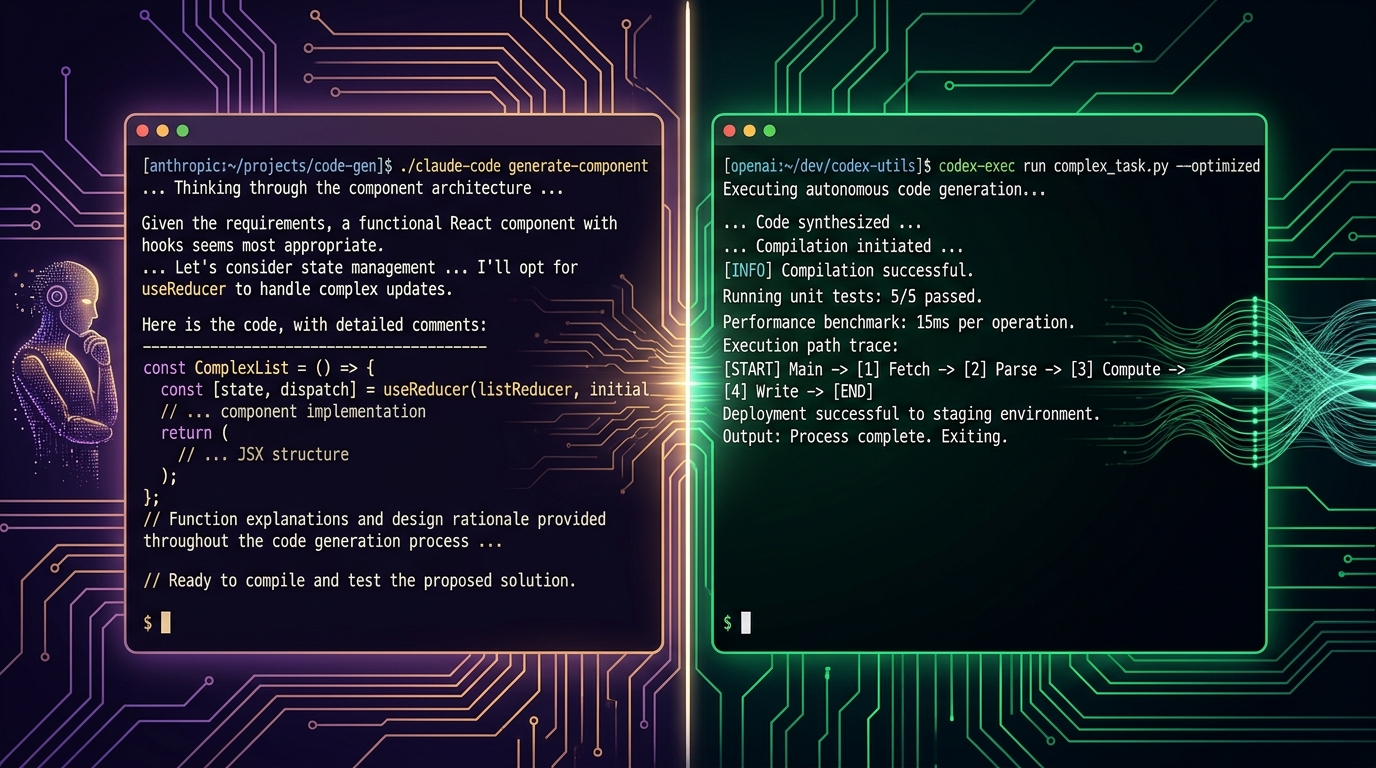
Claude Code is Anthropic's official command-line interface (CLI) agent for coding. It brings Claude directly into your terminal, giving it read/write access to your project files, the ability to run shell commands, manage git operations, and execute complex multi-step development workflows — all from within your terminal.
Unlike the chat UI at claude.ai, Claude Code operates inside your project. It sees your file tree, reads your code, makes edits, runs tests, and commits changes. It's less "ask a question" and more "hire a pair programmer who lives in your terminal."
Getting Started
Installation
class="language-bash">npm install -g @anthropic-ai/claude-code
Or if you prefer the official installer:
class="language-bash">curl -sS https://docs.anthropic.com/claude-code/install.sh | sh
You'll need an Anthropic API key. Set it as an environment variable:
class="language-bash">export ANTHROPIC_API_KEY="sk-ant-..."
I'd recommend adding that to your .bashrc, .zshrc, or using a tool like direnv to keep it per-project.
First Run
Navigate to any project and run:
class="language-bash">claude
This opens an interactive session. Claude will scan your project structure, index relevant files, and present a prompt. Type your first request — something simple like "explain the architecture of this project" or "what does the main entry point do?"
Pro tip: On first run, Claude creates a.claude/directory in your project. This stores session history and project-level configuration. Add it to.gitignoreif you don't want session logs committed.
The Core Workflow
Claude Code's power comes from its agentic loop — it can read files, think about what to do, edit code, run commands, see the output, and iterate. Here's how a typical session looks:
1. Exploration Phase
Start by asking Claude to understand the codebase:
> Walk me through the project structure and explain what each directory does
It'll read your files, build context, and give you a high-level map. This is optional but valuable in unfamiliar repos.
2. Making Changes
This is where the magic happens:
> Add a /health endpoint to the API that returns the current server status and uptime
Claude will:
- Find the relevant router/module files
- Read the existing code to understand patterns
- Edit files to add the endpoint
- Run the linter/tests to verify nothing broke
For more details, see the official documentation and provider benchmarks.
You can see every change before it's applied — Claude shows you diffs and asks for confirmation (configurable).
3. Debugging
When things break, Claude can iteratively fix them:
> The tests are failing. Run the test suite, read the errors, and fix the issues
It'll run the tests, read the output, investigate the failing code, make fixes, and re-run until green — or explain why it can't fix something.
4. Git Integration
Claude Code has first-class git awareness:
> Commit these changes with a descriptive message
> Create a new branch for this feature
> Squash the last 3 commits and write a clean commit message
It understands your current branch state, what's staged vs unstaged, and can manage commits intelligently.
Key Features Worth Knowing
Claude Files (.claude/)
The .claude/ directory is your project's AI configuration:
.claude/settings.json— Global preferences (model choice, permissions, behaviors).claude/project.json— Project-level instructions (custom per-project).claude/instructions.md— Raw markdown instructions injected into every session context. This is your most powerful tool — use it to define project conventions, architecture rules, testing requirements, or anything you want Claude to always remember.
Example .claude/instructions.md:
class="language-markdown"># Project Rules
- This is a Next.js 14 app with App Router
- Use TypeScript, no
anytypes unless absolutely necessary - Tests live in
__tests__/and use Vitest - Prefer server components over client components
- All API routes must have rate limiting
Commit messages follow conventional commits format (feat:, fix:, chore:, etc.)
Multi-File Edits
Claude Code can orchestrate changes across many files. If you say “rename this component and update all imports”, it will find every reference across the project and update it. It handles the ripple effects that make refactoring painful by hand.
Permission System
You control what Claude can do without asking:
| Permission | What It Controls |
|---|---|
| Read | Reading any file in the project |
| Edit | Writing/editing files |
| Command | Running shell commands |
| Bash | Fine-grained command execution |
By default, Claude asks before running commands. You can set --dangerously-skip-permissions if you trust it in CI, but I'd keep confirmations on for development.
Slash Commands
| Command | What It Does |
|---|---|
/clear |
Clear conversation history |
/help |
Show available commands |
/compact |
Summarize long context to save tokens |
/cost |
Show current session cost |
/doctor |
Debug issues with Claude Code itself |
MCP (Model Context Protocol)
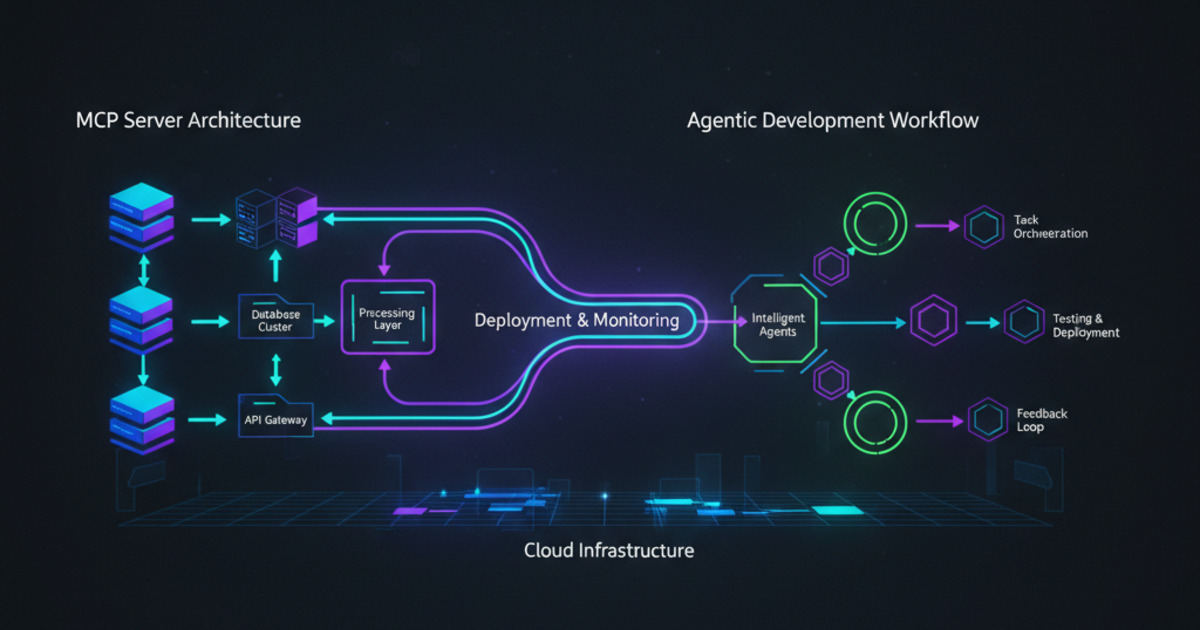
Claude Code supports MCP servers, letting you hook in external tools. You can give Claude access to databases, APIs, documentation servers, or custom tools — and it'll use them naturally during development.
CLI Mode
Beyond interactive sessions, you can use Claude Code in one-shot CLI mode:
class="language-bash">claude -p "Explain what main.go does"
claude -p "Find any security vulnerabilities in the auth logic" --print
The --print flag outputs the response to stdout (no interactive session), making it pipeable into other tools.
Extended thinking mode:
class="language-bash">claude --thinking "Refactor the payment processing module to support multiple gateways"
Practical Patterns I Use Every Day
The "Just Tell Me What to Do" Pattern
When starting something new, ask Claude to scope it:
> I need to add WebSocket support for real-time notifications. Before writing any code,
 walk me through the approach, the files I'll need to change, and any tradeoffs.
This turns Claude from a code generator into an architect. Review the plan, refine it, then say "go ahead."
The "Read-Understand-Fix" Loop
When fixing bugs, give Claude the context it needs:
> The CI is failing on this PR. Read the failing test, understand what it expects,
 find the bug in the implementation, and fix it.
Don't paste error messages — just describe the situation and let Claude explore.
The "Claude-Driven Development" Flow
1. "Design a database schema for a multi-tenant SaaS app"
2. "Generate the Prisma schema file"
3. "Create the CRUD API routes following our existing patterns"
4. "Write tests for the new endpoints"
5. "Run the test suite and fix any failures"
6. "Commit everything with conventional commit messages"
This is where Claude Code truly shines — chaining these steps together without you touching the keyboard between them.
The "Second Brain" Pattern
Use the .claude/instructions.md file as a living document:
> I noticed we consistently forget to handle edge cases in error responses.
 Update the project instructions to remind us about this.
Over time, your instructions file becomes a powerful knowledge base that makes Claude better at working in your specific project.
Tips & Tricks
Be Specific About File Locations
Instead of "fix the auth bug", try: "in src/lib/auth.ts, the session validation is failing silently. Find the issue and fix it, then update the tests in src/__tests__/auth.test.ts."
Use /compact Strategically
Long sessions eat context. When Claude starts losing track of early context, use /compact to summarize — it keeps the important decisions and lets you keep going without starting fresh.
Check the Cost
Run /cost periodically if you're on an API-key basis. Complex refactors can use surprising amounts of tokens, especially with large files.
Start Fresh for Independent Tasks
If you're switching contexts entirely ("let's pause the payment work and fix the login page"), consider ending the session and starting a new one. Each session's context is finite, and mixing unrelated tasks wastes it.
Keep Project Files Lean
Claude reads files to understand context. If you have massive generated files (compiled bundles, lock files, etc.), add them to .claudeignore (same syntax as .gitignore) so they don't bloat the context window.
Limitations to Know
- Large codebases — Claude can't read your entire monorepo at once. It reads strategically, but on massive projects, guide it to the relevant areas.
- Long sessions — Even with
/compact, very long sessions degrade. Start fresh when context feels stale. - No internet access — Claude can't browse the web or pull external dependencies without explicit MCP tools.
- Cost — On the API billing model, heavy use (especially with extended thinking) adds up quickly.
- No image support in CLI — You can't show Claude screenshots. You need the web UI for visual debugging.
The Bottom Line
Claude Code is the most capable coding agent I've used in a terminal. It's not perfect, but it's genuinely useful for daily development — not a demo, not a toy. The key is learning to work with it: give it context, review its plans, trust it on boilerplate and refactors, verify on critical logic.
The .claude/instructions.md file is the secret weapon. The more you teach it about your project's conventions, the better it gets.
If you've been using Claude through the chat interface, give the CLI a shot. It's a different beast — and once it clicks, it's hard to go back.
Got your own Claude Code tips? I'd love to hear them.
📊 See how this tool compares to alternatives
Dig deeper: Claude Code review · Claude Cowork review.
📖 Related Reads
- CodeIntel Log — code quality, debugging, and software engineering benchmarks
- ToolBrain — tool reviews, LLM comparisons, and AI workflow guides
- Hermes Tutorials — Hermes Agent setup, configuration, and advanced workflows
Cross-links automatically generated from None.
Back to all posts